Second batch · planned tool
Image upscaler: prepare the source before enlarging.
A larger canvas and an AI image upscaler solve different problems. Use this checklist to choose a source and an output size; AI detail enhancement is not available in this preview.
Prepare a reference boardAI generation, saving and collaboration are available. Choose Seedream, Nano Banana or GPT Image in Generate. Krea’s official model is not connected.
References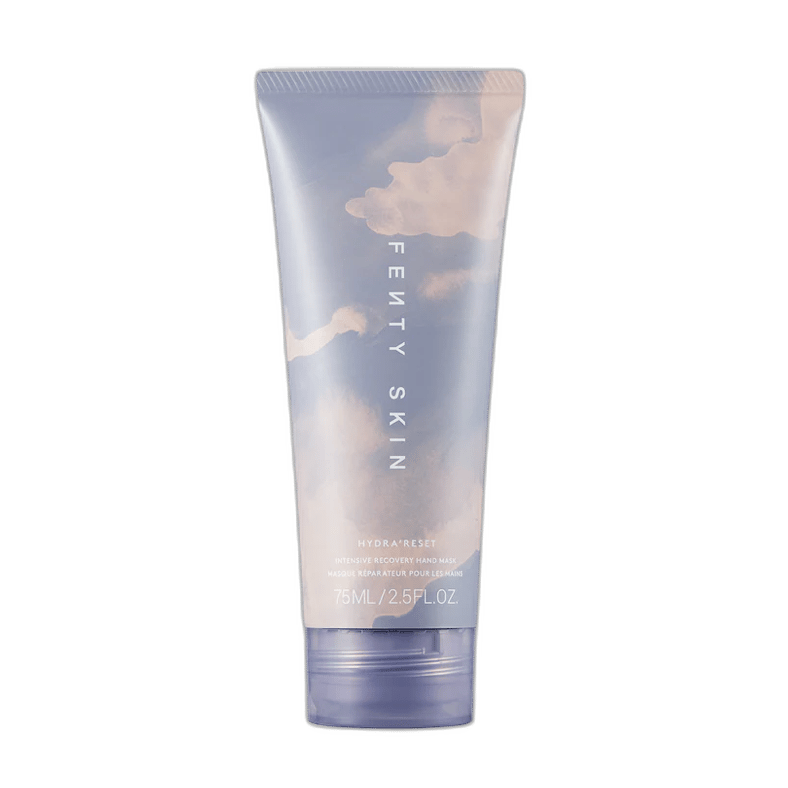
Person · Background
Product · Style
Person · Background
Source detail + output sizeWorkspace illustration · not a generated result
What to bring
Give each reference one job.
A note about the output medium and intended dimensions.
A reference crop that shows the detail to review.
A ready-to-edit starting point
Your workflow brief.
This brief opens with the reference board. Adjust it for your actual images and intended output.
Upscaling brief: record the source dimensions and intended output size. Identify details that must stay exact, especially text, faces and product labels. Compare the enlarged image at full size before approval.
Use this brief in the editor ↗Resizing is not detail recovery
Placing an image on a larger canvas can change the file dimensions. It cannot reveal real information that was absent in the source. A future upscaler may synthesize detail, which must be reviewed rather than assumed to be authentic.
- Start from the original file rather than a screenshot.
- Record the native dimensions before resizing.
- Review small lettering and fine patterns at 100%.
Choose the output for its actual use
A social composition, marketplace listing and print asset can have different requirements. Decide the required dimensions and crop before requesting an enlargement. The current editor supports manual image placement and canvas export, not AI super-resolution.
- Keep the source image as a reference for comparison.
- Avoid describing a resized image as restored original detail.
- Return to product-specific workflows when consistency matters.
Workflow questions
Image upscaler questions
Is AI upscaling available?
Not yet. This second-batch page stays out of the search sitemap until the tool is connected and verified.
Can I export a 2K canvas now?
Yes. Canvas export is available and is distinct from AI detail enhancement.
One shared workspace
Turn a reference into a clear direction.
Bring your images, arrange the canvas and share the next step.
Open the editor preview Generate with Seedream 5 Pro or Nano Banana, then edit and export. Shared preview allowance applies.