Krea 3 guide · Published · Reviewed
Krea 3 Reference Editing Workflow: Step by Step (2026)
Start a reference project, upload your source images, keep the active board to eight references or fewer, and describe one clear change. In Generate, choose Krea 3 Berry and an output size, review the credit quote, then confirm. Inspect the saved original before adding it to your canvas or exporting a composition. Preparation and canvas work are free; AI generation uses credits, including the one-time signup gift for eligible new accounts.
Open the Krea 3 editor ↗1. Prepare the product and the direction separately.
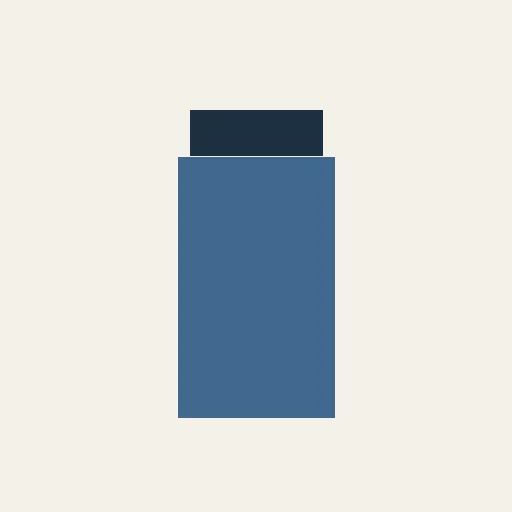
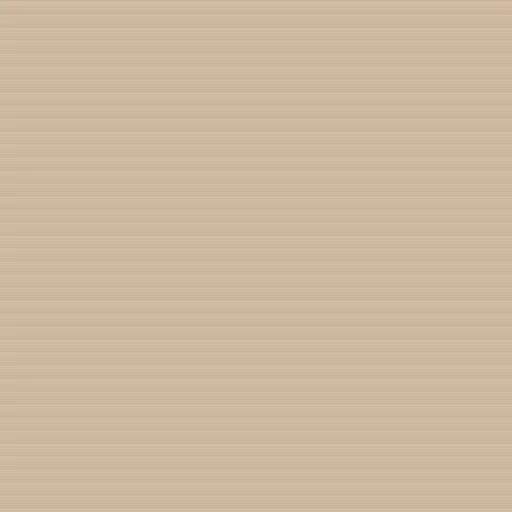
Use a sharp source image with the product fully visible. A second image can supply a material, surface or atmosphere. Avoid giving the model several conflicting examples of the same decision. For a skincare campaign, keep the bottle shape and label in the product reference and put the desired stone or fabric in a separate image.
Open the Krea 3 studio and start a reference project. Upload PNG, JPG or WebP files within the 16 MB and 40-megapixel limits. Uploading saves an asset in the project; it does not submit an AI generation. Use only source material you have the right to process.
2. Order the references before writing the prompt.
Keep the subject first, then the supporting direction. Reference roles organize the board, while the image order supplies the numbered inputs. A project has twelve slots, but the Krea 3 Berry generation route accepts eight. Remove extras from the active board before submitting; see the reference image limit guide.
| Input | Job | Review after generation |
|---|---|---|
| Image 1: source product | Explain bottle shape, cap and label | Compare proportions and packaging text |
| Image 2: stone sample | Describe the surface and color palette | Check surface texture and contact shadow |
| Written instruction | Specify framing and lighting | Check whether unrelated details changed |
3. Describe one change and the details to preserve.
The following is a suggested prompt for your own images. It is not a claim that every output will preserve these details:
Use the bottle in image 1 as the main product.
Place it on a pale stone surface inspired by image 2.
Keep the bottle proportions, cap shape and label layout recognizable.
Use soft side lighting and a simple warm background.
Do not add another product or extra campaign text.
A narrow instruction is easier to review than a request that changes the subject, pose, camera, environment and lettering at once. If the result drifts, return to the strongest original reference and change fewer things. Text that must be exact can remain an editable canvas layer.
4. Choose output settings and confirm the quote.
The workspace opens with a 2048 × 2048 canvas, while AI output size is chosen separately in Generate. Choose a supported 1K or 2K preset and review the final credit cost after the references are in place. This walkthrough uses Krea 3 Berry; this editor does not offer Jam, realtime generation or a protected pixel mask.
Google sign-in and sufficient prepaid credits are required for generation. Only confirm once. For a reproducible first pass, select Krea 3 Berry, 1K square (1024 × 1024) and Standard detail. The canvas can remain 2048 × 2048. With no references, this setting uses 3 credits; with two references, use the quote shown after those exact inputs are selected. The request keeps its original task identifier while it is queued or running. When the status is uncertain, use the existing-request check instead of submitting another paid job.
5. Inspect the original, then compose and export.
Compare the saved result at its delivered size with the product reference. Check lettering, silhouette, cap, reflections and material boundaries. A visually convincing image can still describe the wrong product. Confirmed failures or blocked requests return the reserved credits; a completed result is not automatically refunded because you prefer a different creative direction.
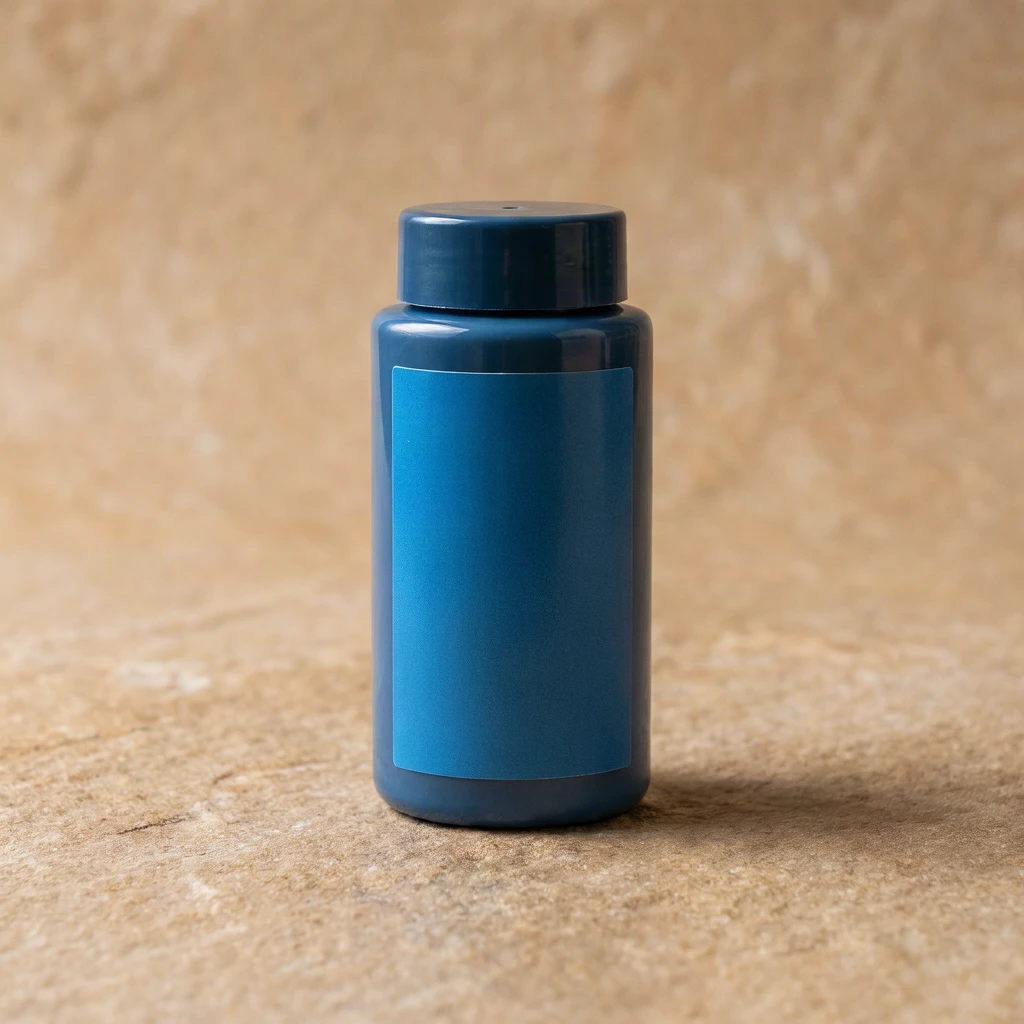
Download the generated original for the delivered pixels. Add it to the canvas when you need editable text, shapes or layout, then export PNG or JPG. A canvas export is the composition you made; enlarging it is not AI upscaling. Keep the private project link secure when sharing with reviewers.
Frequently asked questions (2026)
Can I prepare the reference board without paying?
Yes. Uploading, manual canvas editing, saving, collaboration and PNG/JPG export are free. AI generation requires Google sign-in and credits, from an eligible signup gift or a purchased pack.
Does changing the canvas size change the AI output size?
No. Select AI output size in Generate. Canvas dimensions control the composition and export, not the original model output.
What should I do if generation seems stuck?
Check the existing request. Its original provider task is retained; the editor does not automatically submit a replacement paid generation.
Can I protect every pixel outside an edit?
The current editor does not provide a precise protected-region mask. Reference edits can change surrounding details, so compare the result with the original.